![apiant-logo-forum.png]](https://help.apiant.com/hs-fs/hubfs/apiant-logo-forum.png?height=40&name=apiant-logo-forum.png)
With this feature, you can select which Mindbody products you want to sync with your Shopify store.
- Feature ON will give you the option of selecting which products to Sync
- Feature OFF will sync all products
- As a reminder, Mindbody is the master of the data. The Mindbody API does not allow for creating products or pricing options. We can only read the information from Mindbody and create in Shopify.
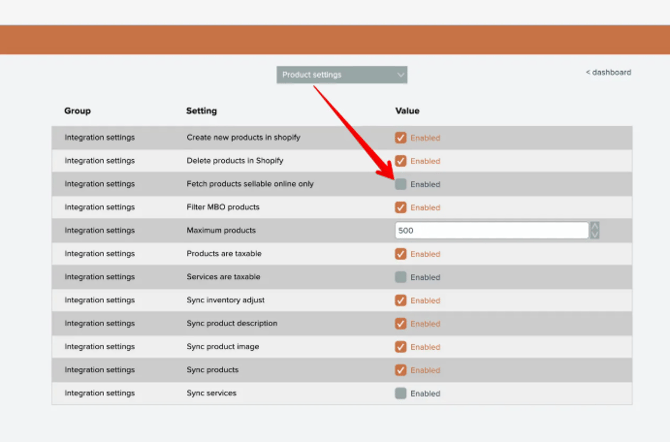
To turn ON you will need to enable the 'Fetch products sellable online only' setting (ShopConnect Settings
)
Next, you will need to select which products to sync.
- Open Mindbody and select Products from the main menu.
- Click 'Search' button to show all products.
- Select which products to sync by checking the 'Link' box for the corresponding product.
- Click 'Save' button.

Note: It can take up to 15 minutes for product changes to sync with Shopify.
When used in conjunction with the 'Filter MBO products' and 'Delete products in Shopify' features you will be able to have products removed from Shopify.
IMPORTANT: You must change a product's Online price to "0.00" in Mindbody if you do not want to see this product in Shopify like this:

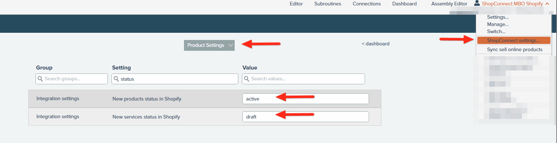
New Products Status in Shopify
What This Setting Does
- Active – The product is immediately published and visible on your Shopify storefront.
- Draft – The product is created in Shopify but not published, allowing you to review or edit it before making it available to customers.
How It Works
- A new retail product is created in Mindbody.
- The sync runs and sends the product to Shopify.
- The product is created in Shopify with the status defined in your New Products Status in ShopConnect setting.
When to Use Each Option
Active
- Best for businesses that want products to go live automatically.
- Ideal when product data in Mindbody is complete and ready for publication.
Draft
- Recommended if you need to:
- Add product images in Shopify
- Adjust descriptions
- Assign collections or tags
- Review product details before publishing
Important Notes
- This setting only applies to newly created products sent from Mindbody to Shopify.
- It does not change the status of existing Shopify products.
- You can manually change the product status in Shopify at any time.
Deleting or Discontinuing Products
If you choose to discontinue a product you can have it removed from Shopify by changing the online price to Zero in Mindbody. If you are using the 'Sell Online' option in the Mindbody feature, you must wait for the product to be removed from Shopify then you can uncheck the 'Sell Online' box in Mindbody. After that, you can click the 'Discontinued' box for that product and click 'Save'.
Note:
To remove Products from Shopify using Mindbody:
Simply unchecking the SOLD ONLINE BOX does NOT DELETE the Product. You must follow the steps below. Otherwise, you will need to MANUALLY DELETE the Product from Shopify.
Change ONLINE price to ZERO - Then Click the Save button
Wait for the Product to be removed from Shopify (This can take up to 15 minutes)
Uncheck the SOLD ONLINE box in Mindbody - Then Click the Save button
If discontinuing the product then check Discountinuied - Then Click the Save button.
Note: It can take up to 15 minutes for product changes to sync with Shopify.
As a reminder, Mindbody is the master of the data. The Mindbody API does not allow for creating products or pricing options. We can only read the information from Mindbody and create in Shopify.
Product info is synced based on the Mindbody barcode to the Shopify SKU field.
Keep in mind that a product in Mindbody that has a Color and or Size variant must also have the same options in Shopify with the same name. If your Variant options in Shopify do not Match Mindbody the sync will fail for that product.
Ex:
Mindbody
Product Name: Lipstick
Variant Color: Red
Variant Size: 1oz
Barcode: 456789123
Shopify
Product Name: Lipstick
Options:
Color: Red
Size: 1oz
SKU: 456789123
Barcode: (not needed)
If the items do not match with what you already have in Shopify, the sync for that product will fail.
If you are adding new products to Mindbody that do not exist yet in Shopify then do not create them in Shopify at this time. Our system can take new products from Mindbody and create them for you in Shopify thus creating the sync. For products that already exist in Shopify, the product must exist in Mindbody and the information for that product must match based on the example above.
If a product has no variants that is considered a 1 to 1 relationship and no options need to be created just match the Mindbody barcode to the SKU field in the Shopify Product.
(See screenshots below of Shopify Product info)

